Add ScoreKeeper to OBS
The display link is a transparent 1920×1080 page. Add it as a browser source once and leave it all season.
Get the display link
In the control deck, press the copy button on the Overlay link at the top of the sidebar. You can also copy it from the board’s card on the dashboard.
The link belongs to the board and never changes, so the OBS source keeps working for every game you run on that board.
Add a browser source
- In OBS, press + under Sources and choose Browser.
- Paste the display link into URL.
- Set Width to
1920and Height to1080. - Turn on Refresh browser when scene becomes active.
- Press OK. Leave the source full-frame; ScoreKeeper places the scorebug itself.
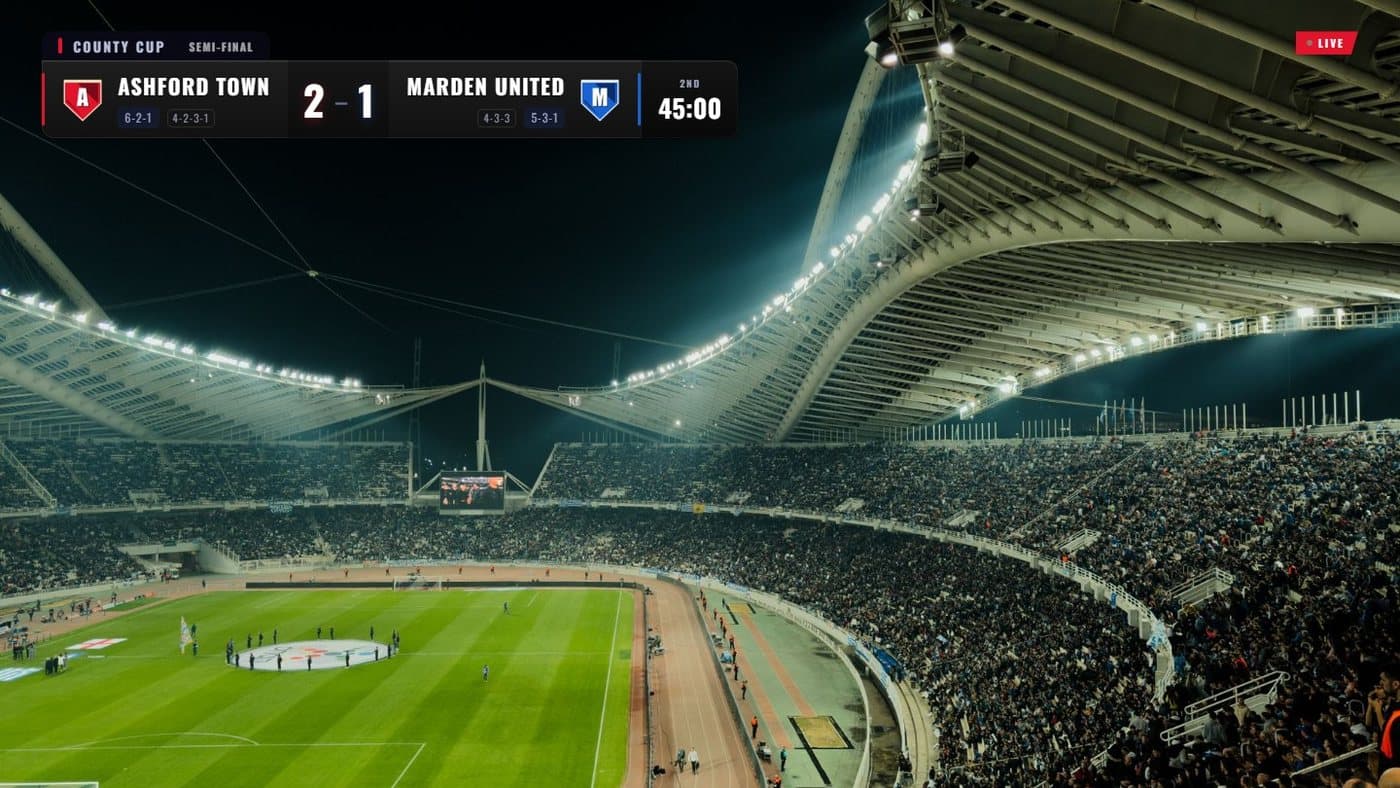
- Scorebug Placed where you set it under Overlay layout.
- LIVE bug Corner graphics keep inside the broadcast-safe area.
The same link works in Streamlabs, vMix, XSplit and anything else that takes a browser source.
Split the scorebug from the graphics
One source carries everything. If you want the scorebug and the lower thirds on separate sources — to put them in different scenes, or hide one — add a layer to the end of the link:
| Link ending | Shows |
|---|---|
| (nothing) | Everything |
?layer=bug | The scorebug only |
?layer=extras | Lower thirds, cards, panels and sponsors |
If something looks wrong
- Nothing shows — check the source is 1920×1080 and not cropped, and that the Scoreboard switch under Match controls is on.
- It stopped updating — right-click the source and choose Refresh. The page also reconnects by itself after a network drop.
- The background is solid — the board’s background opacity is set under Scoreboard settings; Clear lets the video through.