Put your first game on air
From an empty account to a live scorebug on your stream in three steps. You need a ScoreKeeper account and OBS, or any streaming app that takes a browser source.
Create a board
On your dashboard, press New board and pick your sport. The board is saved to your account and opens its control deck straight away.
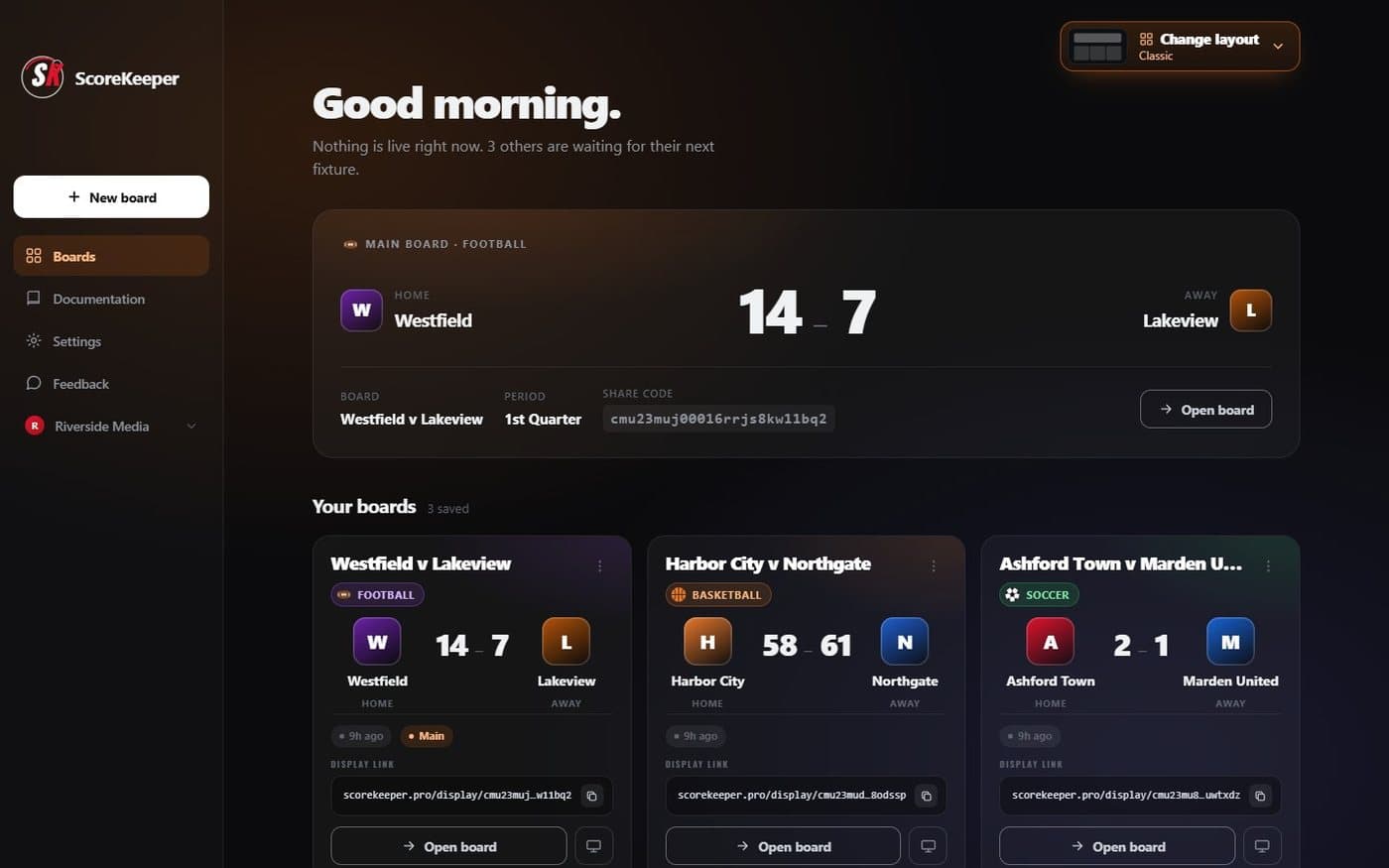
- New board Pick a sport and the board opens in its control deck.
- Change layout Thirteen ways to arrange your boards, saved to your account.
- Display link The link that goes into OBS. Press it to copy.
- Open board Opens the control deck, where you run the game.
Score and run the clock
The top of the control deck is everything you need during play. The preview at the top shows exactly what your stream shows, updating as you press.
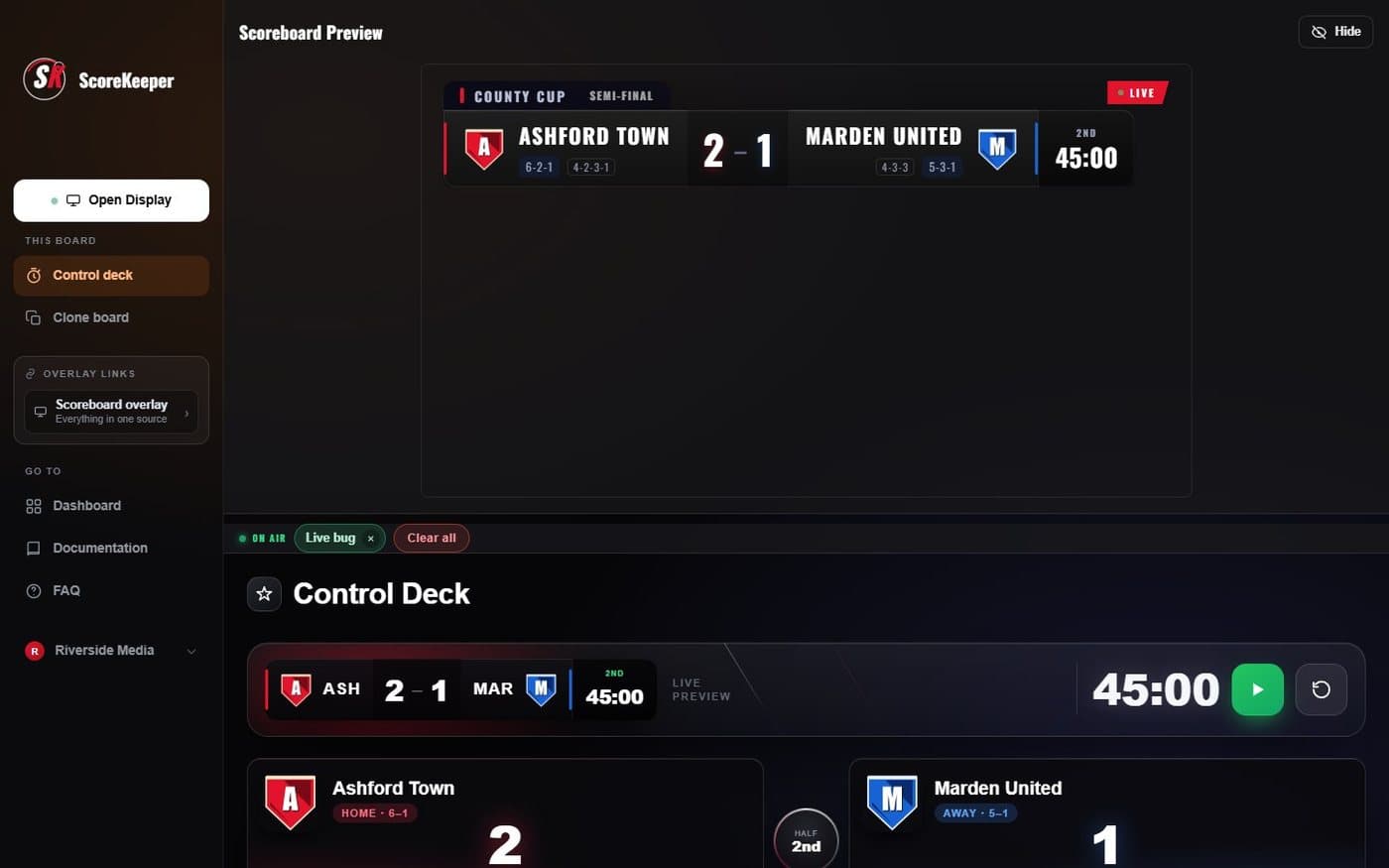
- Live preview Exactly what is on your stream.
- Team cards Each team’s score, with its +1 and a correction minus just below.
- Start the clock Or press Space from anywhere on the page.
- Overlay link The link for OBS, with a copy button — the next step.
Add it to OBS
Copy the Overlay link at the top of the sidebar — the button at its end copies it. In OBS, add a Browser source to your scene and paste it in.
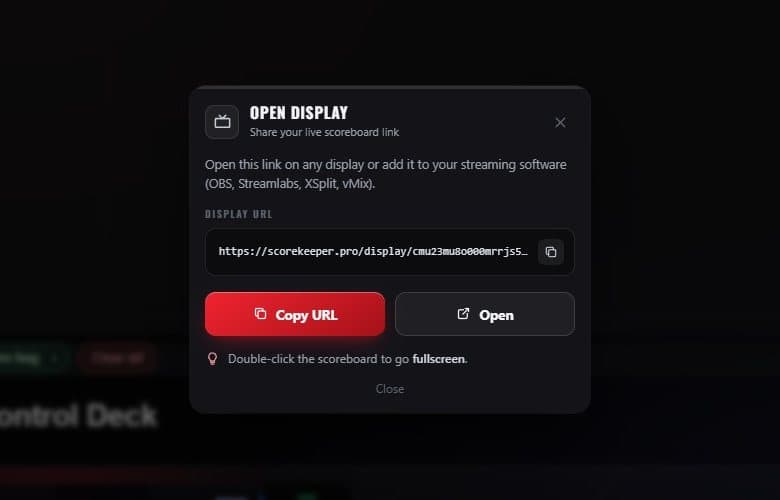
- Display URL Unique to this board, and it never changes — set it up once.
- Copy URL Copies the link, ready to paste.
- Open Opens the overlay in a new tab so you can check it.
| OBS setting | Value |
|---|---|
| Source type | Browser |
| URL | Your display link |
| Width × Height | 1920 × 1080 |
| Refresh browser when scene becomes active | On (recommended) |
The display page is see-through, so your video shows behind the scorebug. There is nothing to key out.
That is it: the scorebug is on your stream, and every press in the control deck reaches it instantly. Next, take a tour of the control deck.