Create and manage boards
Make a board for each game, then rename, schedule, clone or delete it from the dashboard.
Create a board
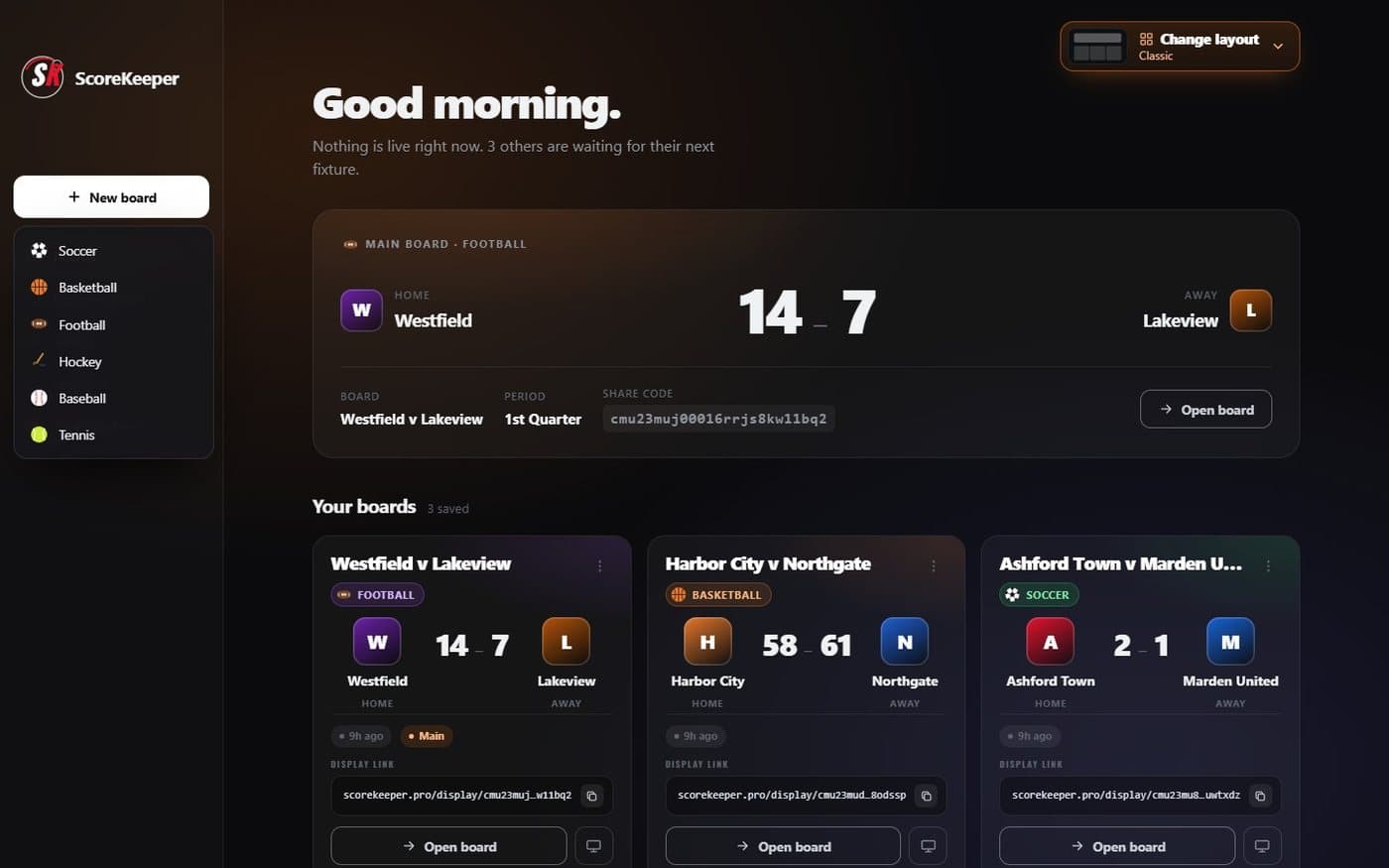
- New board Opens the list of sports.
- Pick a sport Soccer, Basketball, Football, Hockey, Baseball or Tennis.
Each sport starts with the right defaults: 45-minute halves for soccer, 15-minute quarters for football, 12-minute quarters for basketball, 20-minute periods for hockey, and no clock at all for baseball and tennis. Change any of them in the control deck.
Rename, schedule, clone or delete
Every board has a ⋮ menu on its card. From there you can:
- Make main board — it is featured at the top of the dashboard.
- Rename — change the name and sport, and in most layouts give it a date and start time so it lands on the right day in the Planner.
- Clone — a fresh copy with the same teams, rosters and settings, with the score and clock reset. Handy for the next fixture.
- Download board data — the board as a JSON file.
- Delete — removes the board for good. Its display and control links stop working, so take it out of OBS first.
The Free plan covers three boards. Clone or reuse a board for the next game, or delete finished ones, to stay within it.