A tour of the control deck
Where everything lives on the page you run a game from.
The top of the deck
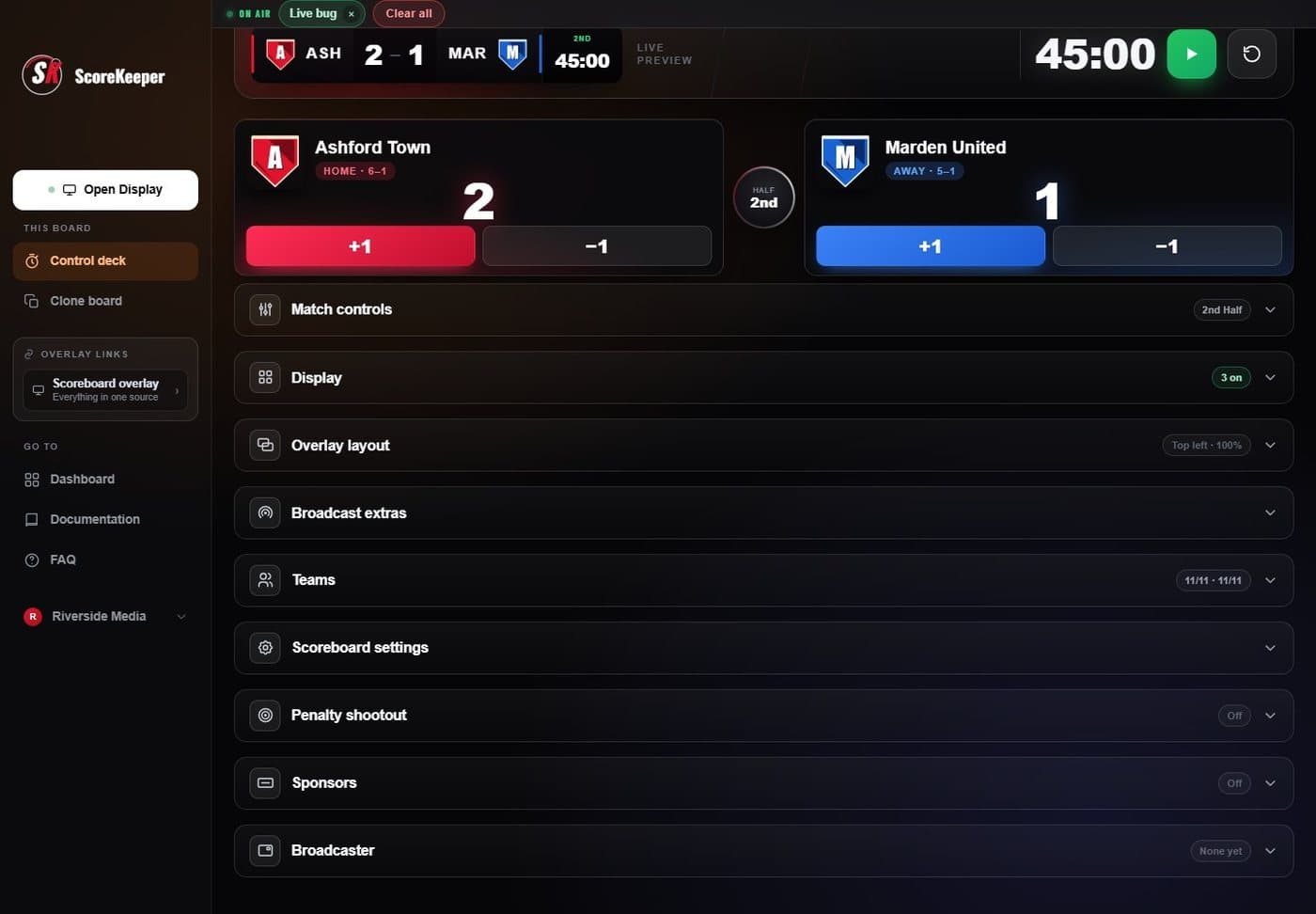
- On air Every graphic that is live right now.
- Clock The match clock with start, pause and reset.
- Scoring A button per team, in its colours, with a correction minus.
- Sections Everything else, folded away until you need it.
Sections open and close with a click and remember how you left them. Each one shows its state on the right, so you can see what is on without opening it.
What each section is for
| Section | Use it for |
|---|---|
| Match controls | Periods, half time and full time, the clock settings, and the on-deck tiles for goals, subs and cards. |
| Display | Switching parts of the scorebug on and off — timer, records, possession and more. |
| Overlay layout | Where the scorebug, lower thirds and panels sit, and how big the scorebug is. |
| Broadcast extras | Lower thirds, goal and card graphics, match stats and full-screen cards. |
| Teams | Names, colours, crests, records, rosters and the team sheet. |
| Scoreboard settings | The scorebug’s style, fonts, colours and background. |
| Penalty shootout | Kick-by-kick shootout graphics (soccer and hockey). |
| Sponsors | Sponsor logos and how they rotate on air. |
| Broadcaster | Your production company’s mark in a corner of the frame. |
Keyboard shortcuts
| Key | Does |
|---|---|
| Space | Start or pause the clock (ignored while typing) |
| ← → | Move between options in any row of choices |
| Enter | Pick a player from the name suggestions |